Today’s work, with everything attached
Bookings land on the phone as cards. Open one for the site address and directions, the customer’s contacts, the equipment’s full service history, and any plans or photos the office attached to the job.

Today’s work, the site history, the hours, the parts, the safety check and the photos - on the phone already in their pocket, working the same whether the site has four bars or none.
Included in your per-user subscription · installs to the home screen, no app store.

Work gets done properly and then loses money on the way back to the office - in a glovebox, a group chat, or somebody’s memory on a Friday afternoon.
“The run sheet is a photo of a whiteboard.”
Today’s jobs are on the phone, with the site address, the contact and the full history attached.
“Timesheets get written up on Friday from memory.”
Start Work and Stop Work on the job itself, so the hours are recorded as they are worked.
“We find out about the extra parts at invoicing.”
Materials and purchase orders are recorded on site, against the job, as they are used.
“There’s no signal out there.”
The app keeps working from cached data and sends everything the moment coverage returns.
“Prove the safety check was actually done.”
The H&S questionnaire is signed on site and filed against the job as a branded PDF.
One app for the whole visit, built for someone standing in a ceiling cavity rather than sitting at a desk.
Bookings land on the phone as cards. Open one for the site address and directions, the customer’s contacts, the equipment’s full service history, and any plans or photos the office attached to the job.
Start Work when they arrive and Stop Work when they are done, or enter it by hand on the Time Sheet. Lunch comes off the right job, on-call shows what they are owed, and submitting the timesheet sends it all in at once.
Add materials from your product list with Quick Add shortcuts, or raise a purchase order for what has to be bought. Notes on a line explain the ones that need explaining, so nobody is guessing at invoicing.
The Health & Safety questionnaire rates the site, records hazards and controls and takes a signature before work starts. Alongside it sit the forms your office built in the Report Designer - and an unfinished one can be parked and picked up later.
Photos and short videos from the job’s Create tab, plus written notes on what was found, what was done and what still needs doing. The office sees the problem instead of hearing a description of it.
Jobs, customers and products are cached on the device, and time, materials and forms are held and sent when coverage returns. If something ever does get stuck, there is a screen that finds it and sends it again.
Every step happens on the one device, and each one reaches the office as it is done.
Work done out of range is held on the device and sent when coverage returns - nobody has to remember to re-enter anything.
The Scheduler updates as team members start, pause and finish, so dispatch is working from what is actually happening.
Tradie Classic or Tradie Light, an independent dark mode and a text size setting - for a bright roof or a dark plant room.
Bookings arrive as cards - who, where, when, and whatever the office said about getting in. Open one and the job screen follows the same order every time: everything known about the job on Info, everything you add on Create, everything needed to finish it on Close.
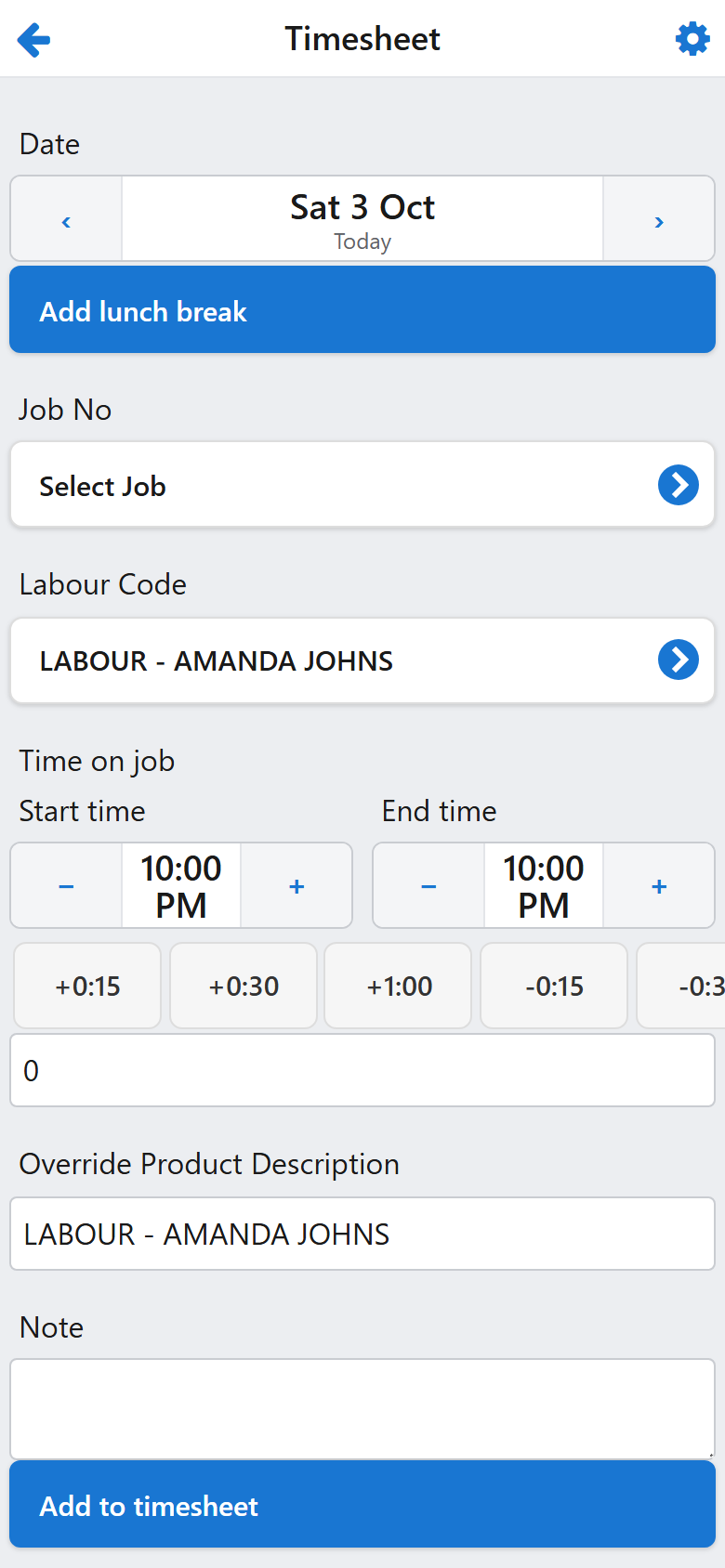
The day’s entries as they were logged, with the chance to correct one before the timesheet is submitted. What goes in is what the office reviews and what payroll eventually pays.

Site risk rated, hazards and controls recorded against the job, and a signature captured on the phone - the same way on every site, by everyone, without a clipboard.
Everything about the job in one place, no paperwork to carry, and a timesheet that fills itself in as the day goes.
Raise a job on the spot when you find more work, check what the team logged, and send photos back before you leave site.
Hours, materials and signed forms arriving as the day happens, instead of a pile of paper on Monday morning.
Yes. Jobs, customers and products are cached on the device, and time, materials and completed forms are held locally and sent automatically when signal comes back. Basements, plant rooms and back-blocks do not stop the job.
No. It runs in the phone’s browser and installs to the home screen like any other app, so it opens full-screen with its own icon. There is nothing to approve in an app store, and an update reaches the whole team at once.
Once after the first sign-in, then a PIN or a fingerprint. That keeps company data off a lost phone without making someone type a password with wet hands.
Yes. The home screen is configured from the Scheduler, per company and per user, so a team member only sees the modules their role actually uses - and you can see their screens as they will draw them before you change anything.
Want the step-by-step detail? The Mobile app guide covers every screen, from logging time to working with no signal.
We’ll set the app up against your own jobs and ERP, and walk your crew through a real day on it - from the booking landing to the timesheet going in.